
Follow the steps below to set up Google Authenticator for your account:
- Download and install the Google Authenticator app on your phone in advance.
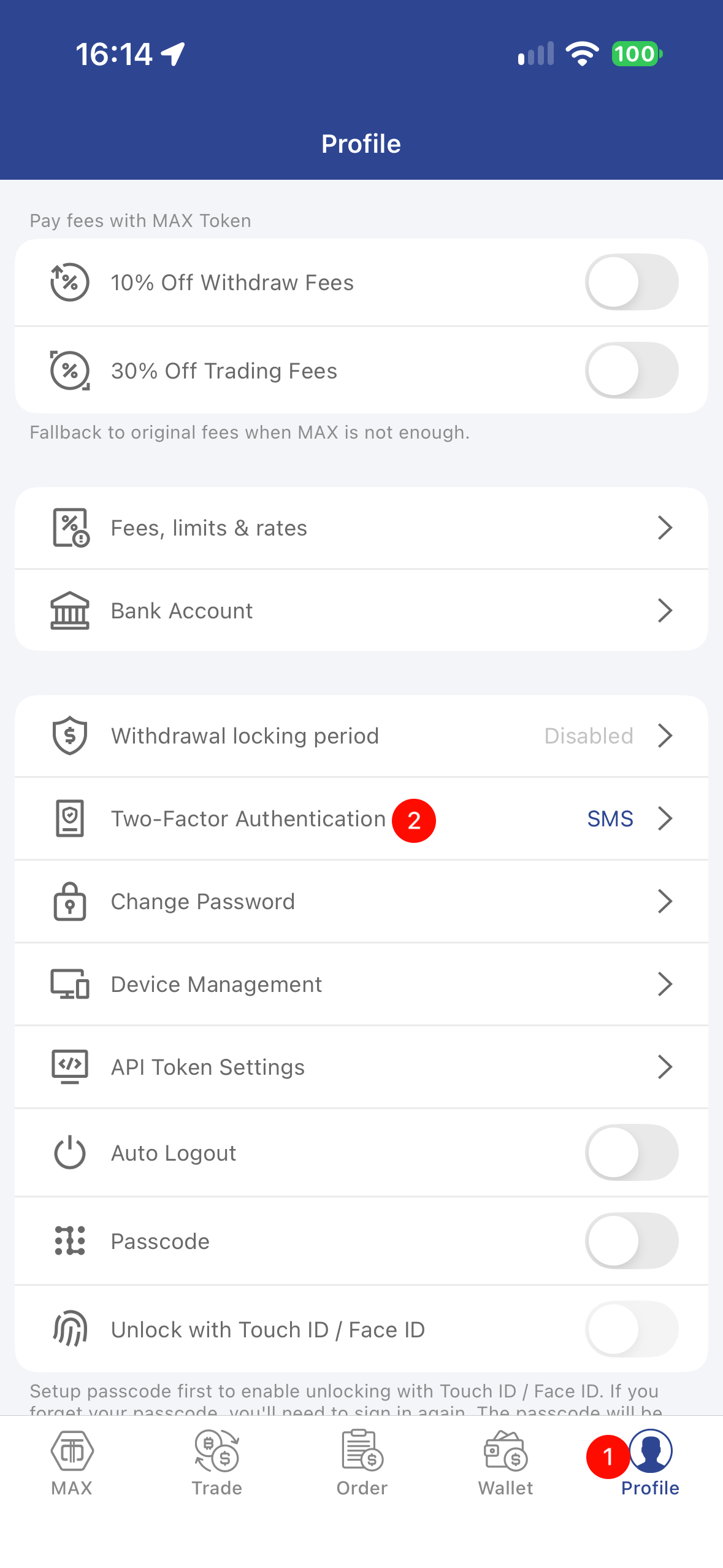
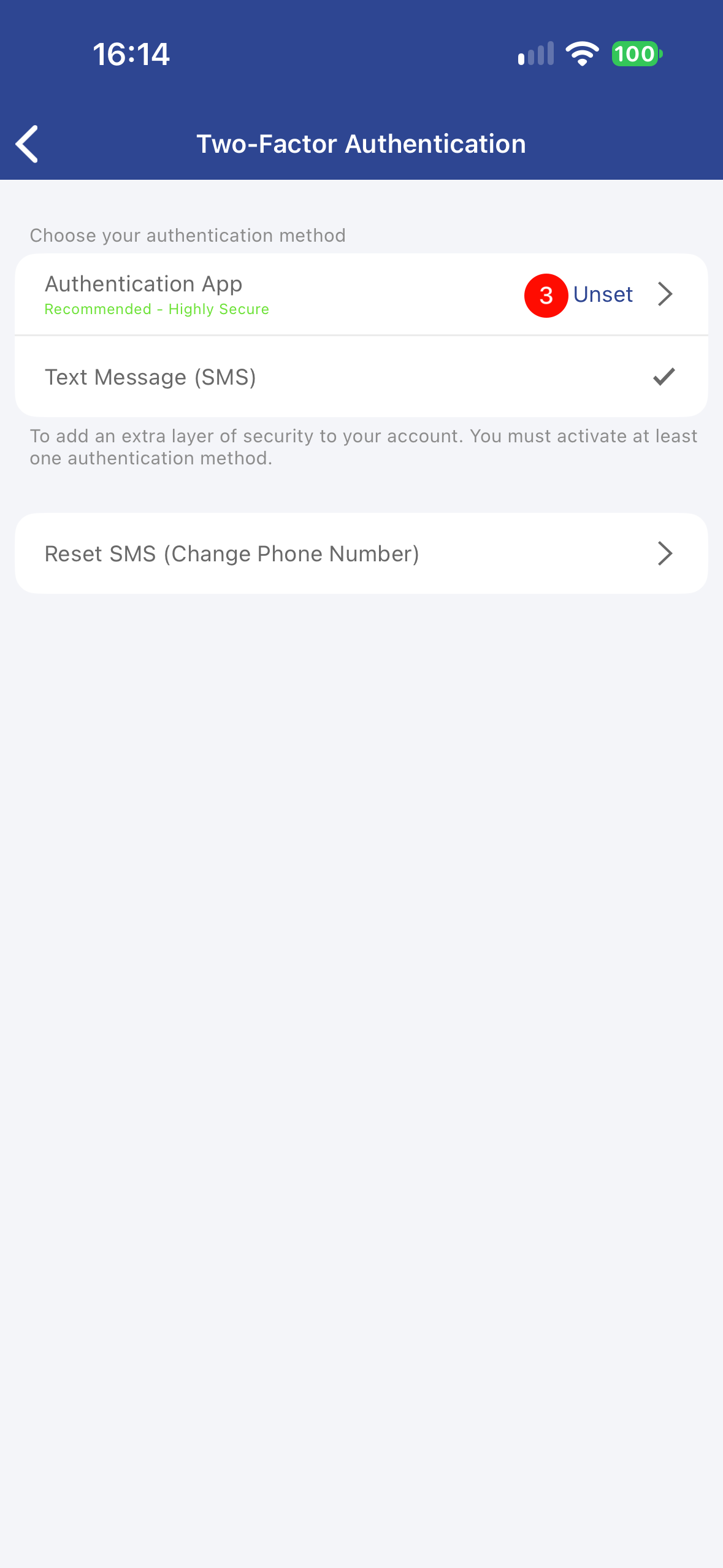
- Open the MAX App, tap User in the bottom-right corner > Two-Factor Authentication > Authenticator.
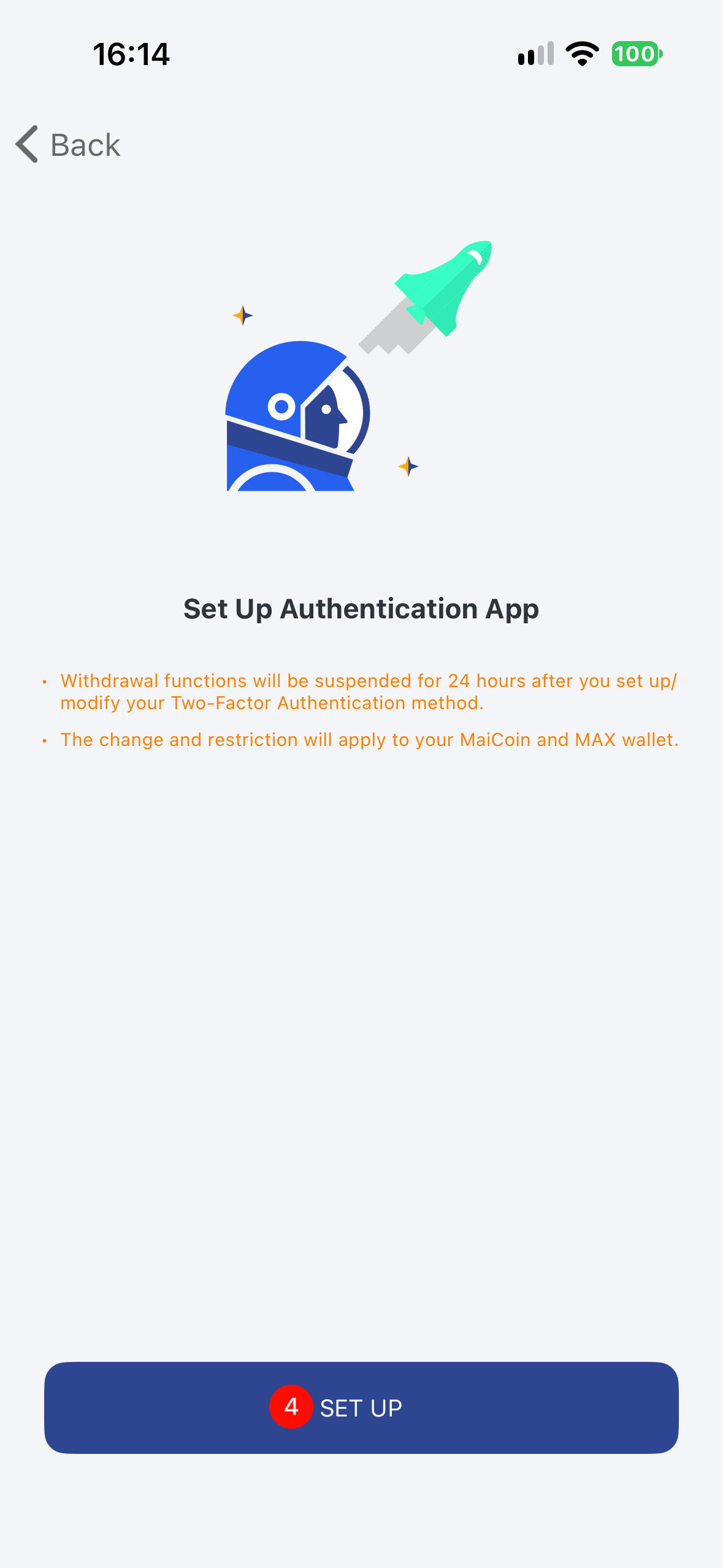
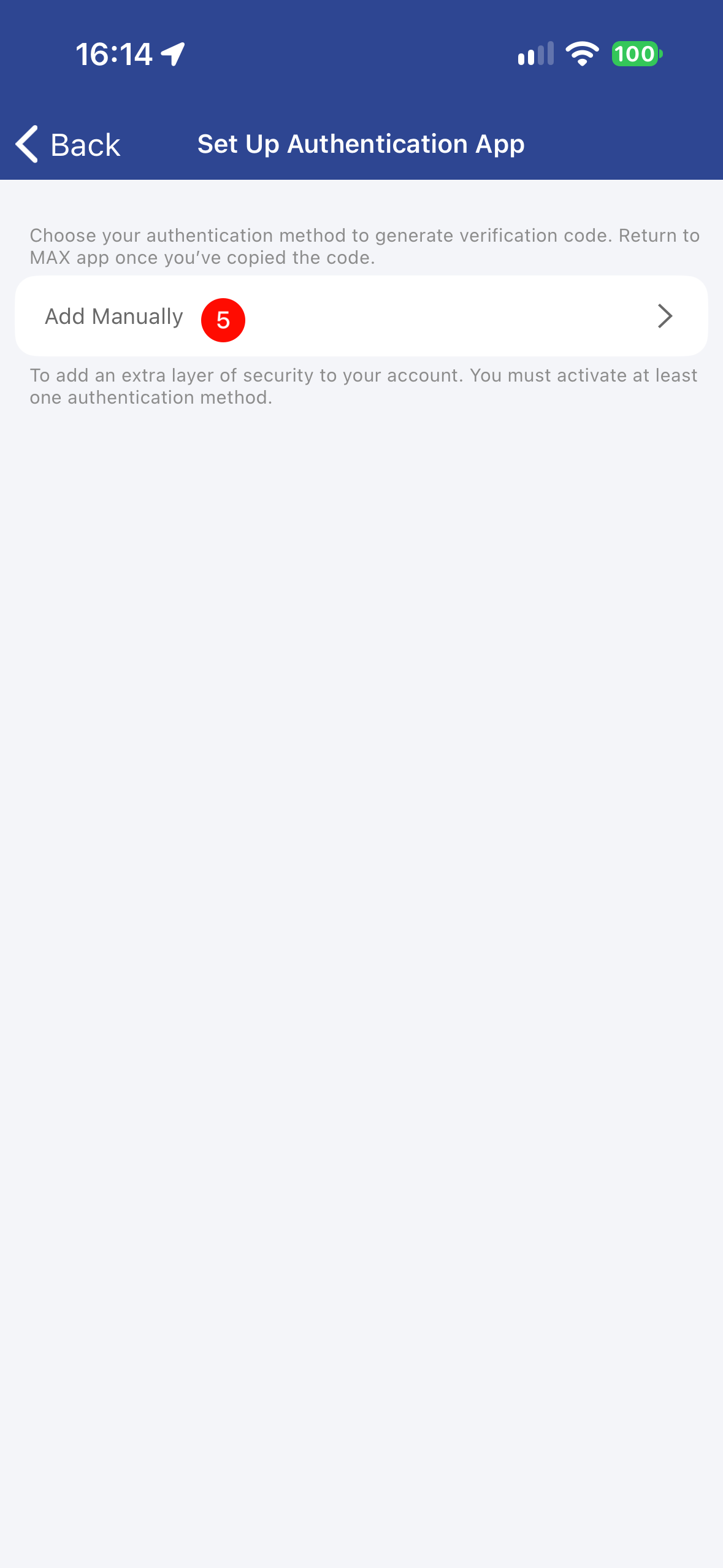
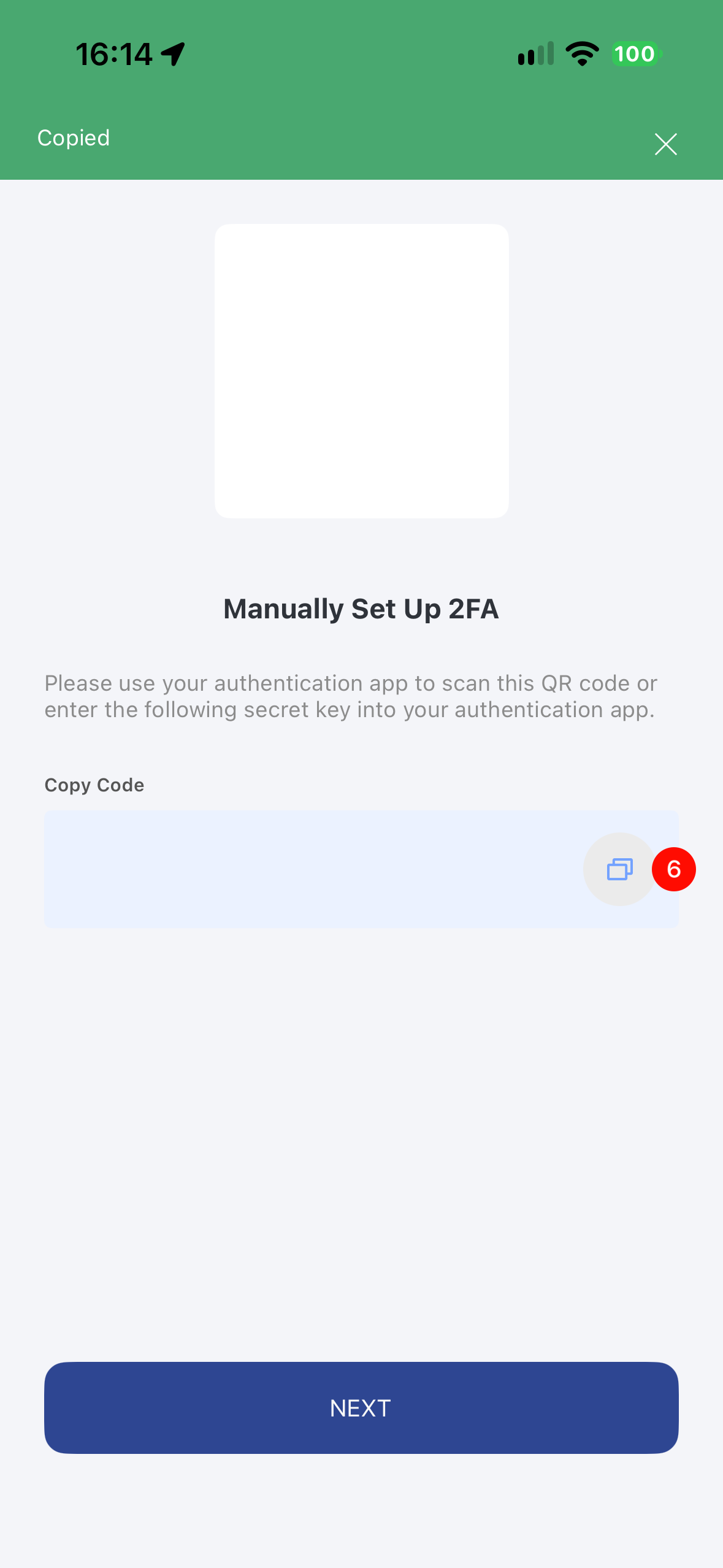
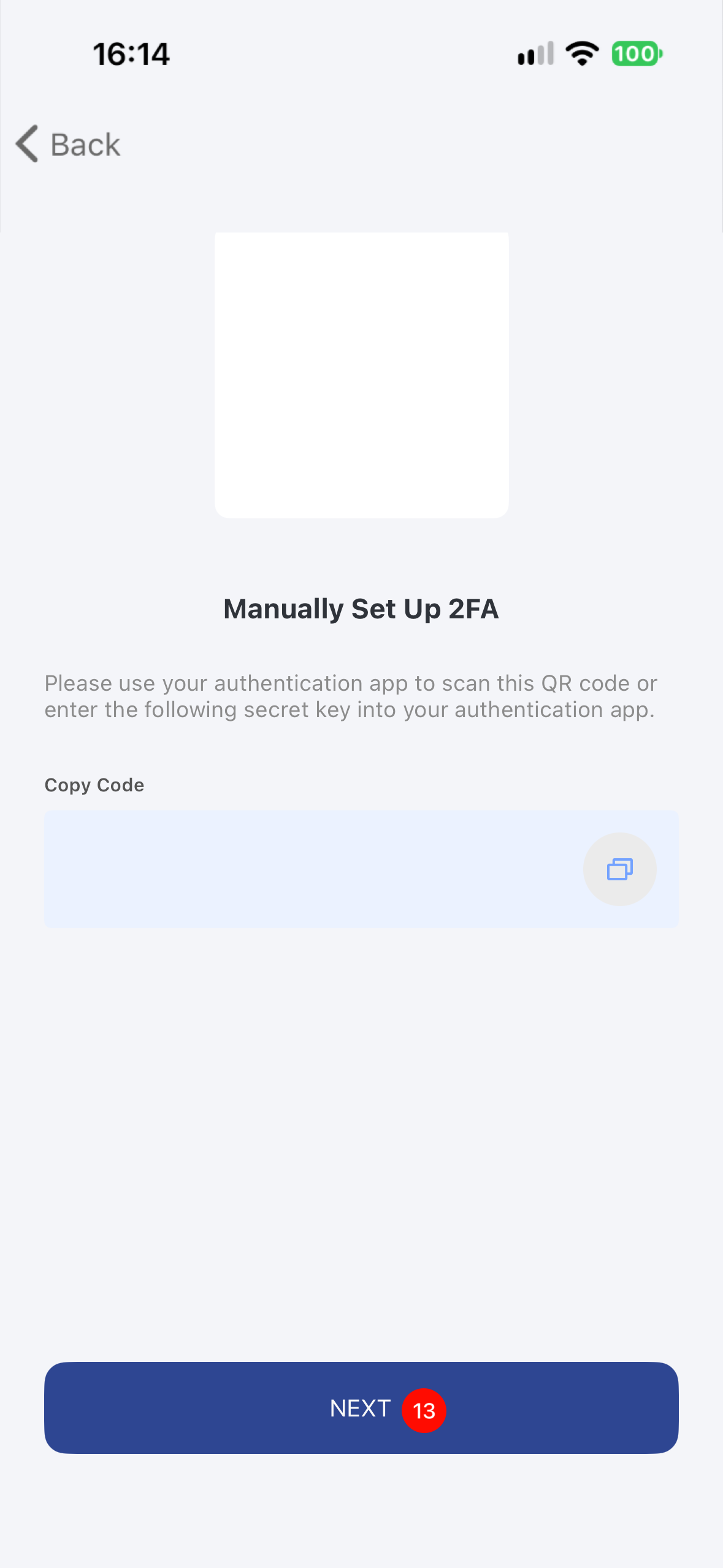
- Tap Bind > Manual Setup, and copy the setup key displayed on the screen.
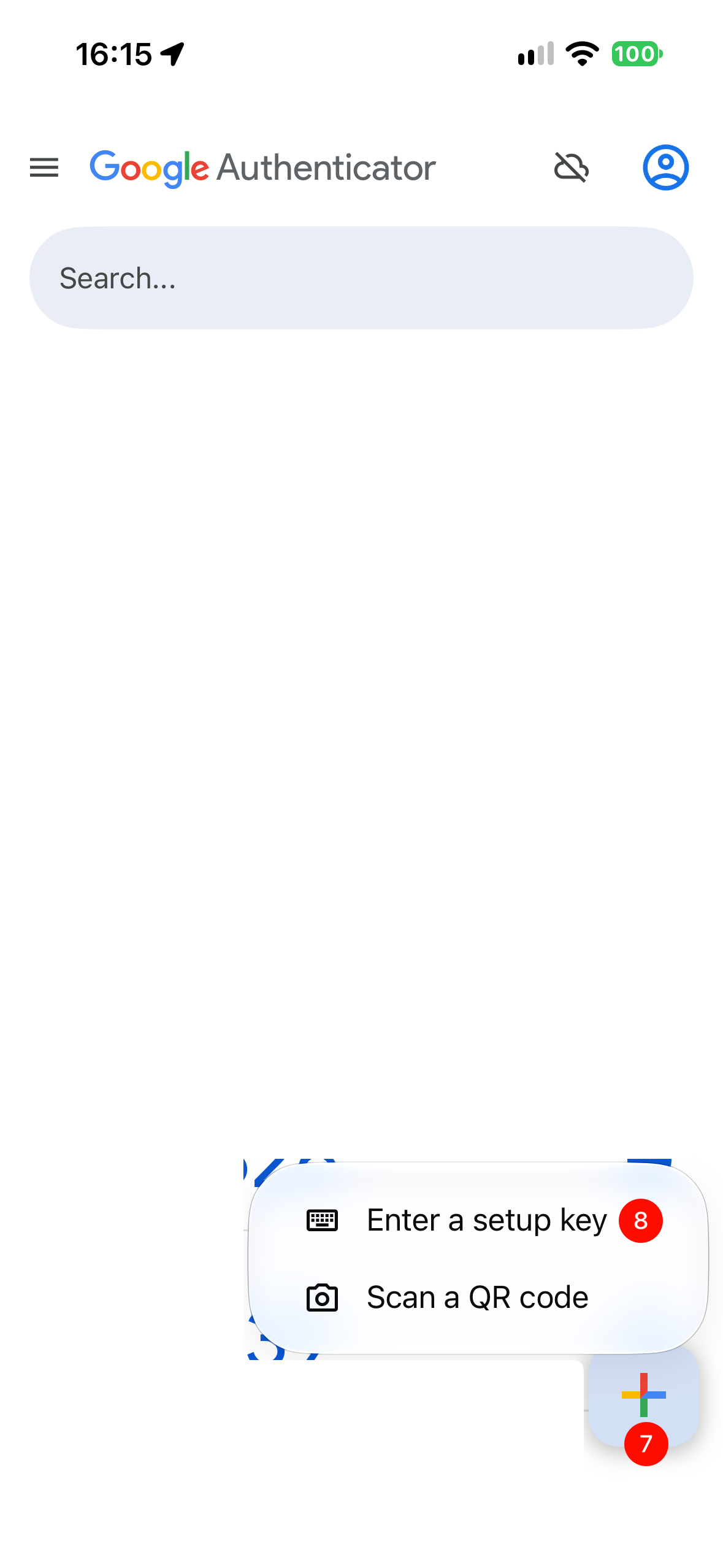
- Open the Google Authenticator app on your phone:
- Tap the + icon in the bottom-right corner > select Enter a setup key.
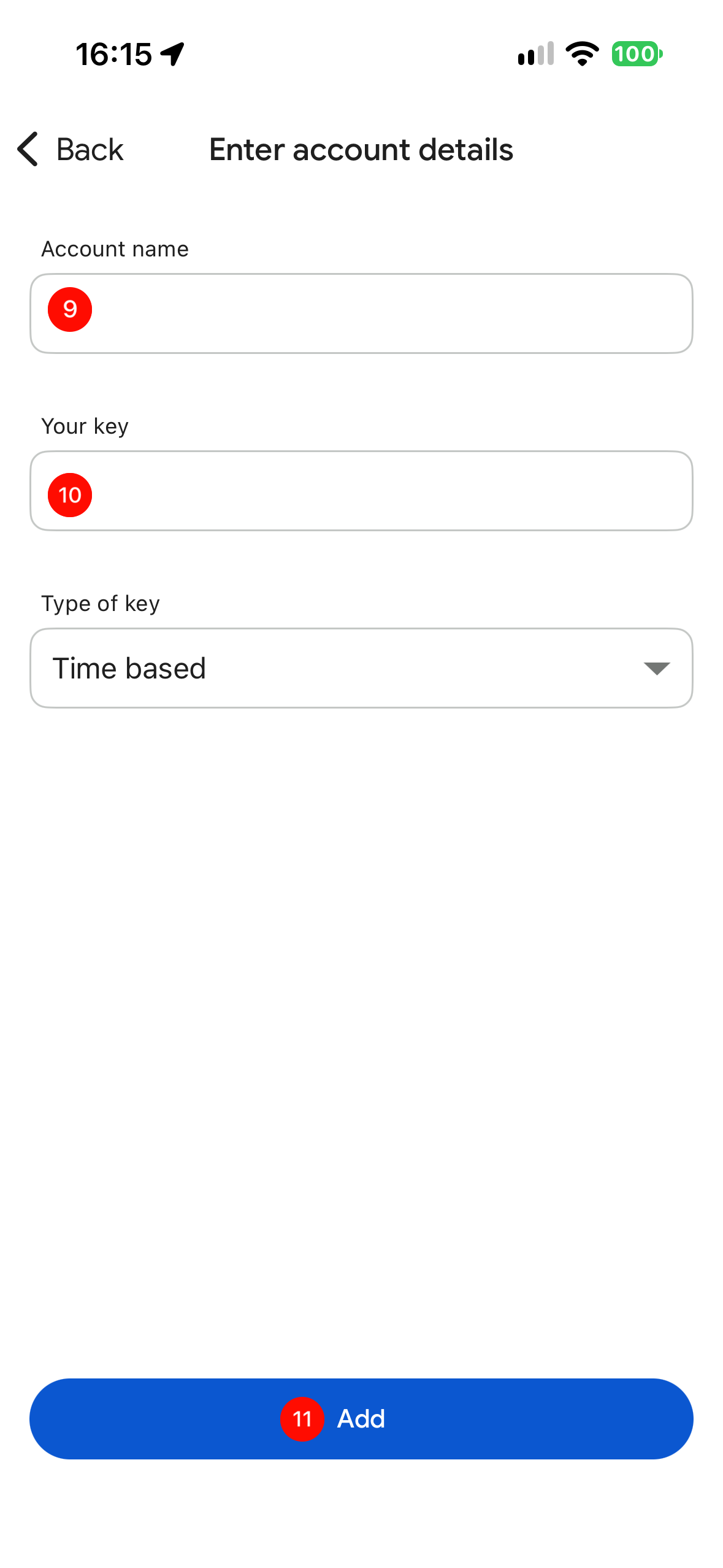
- Enter an Account name (customizable, e.g., MAX).
- Paste the copied key into the Your key field and tap Add.
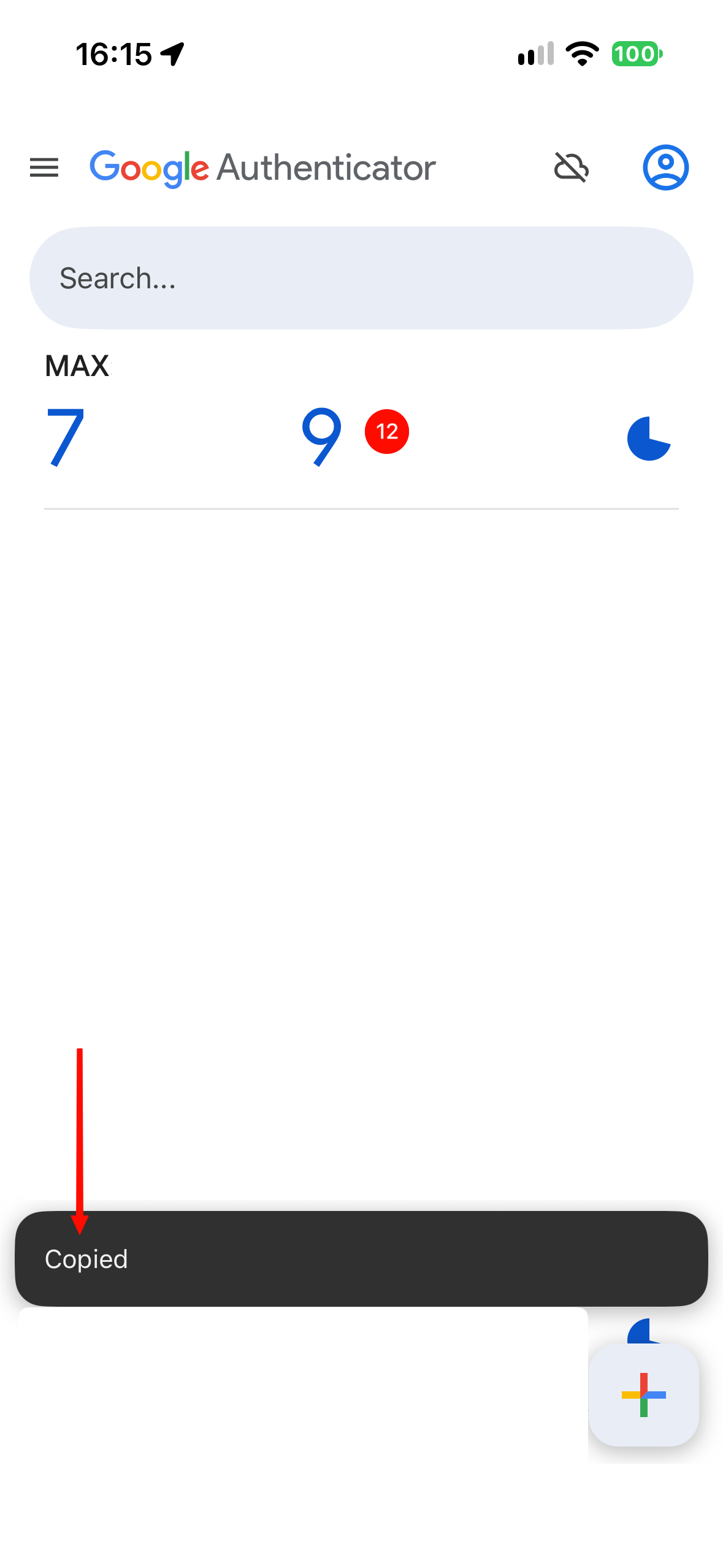
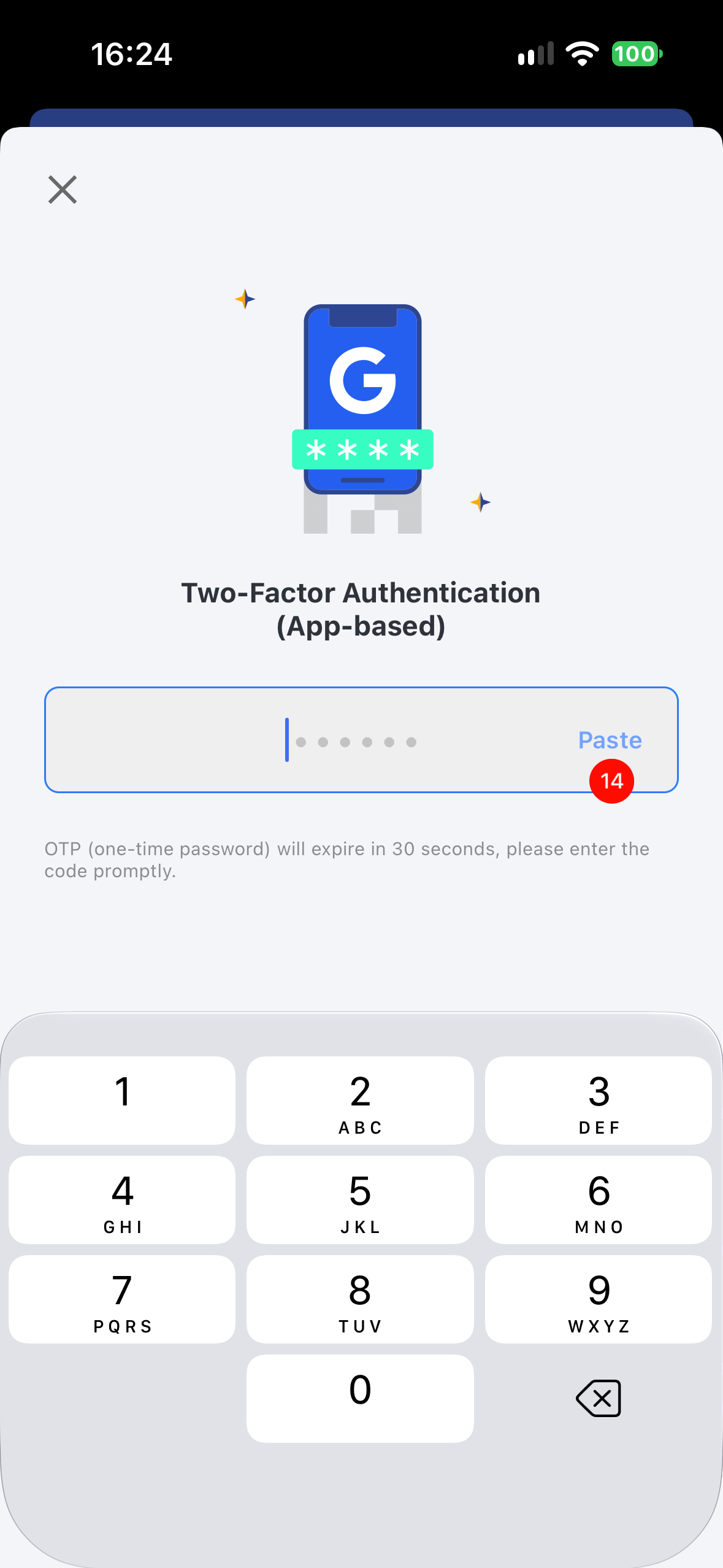
- Tap to copy the 6-digit code generated in Google Authenticator, return to the MAX App, tap Next, and enter the code. The setup is complete once successfully verified.
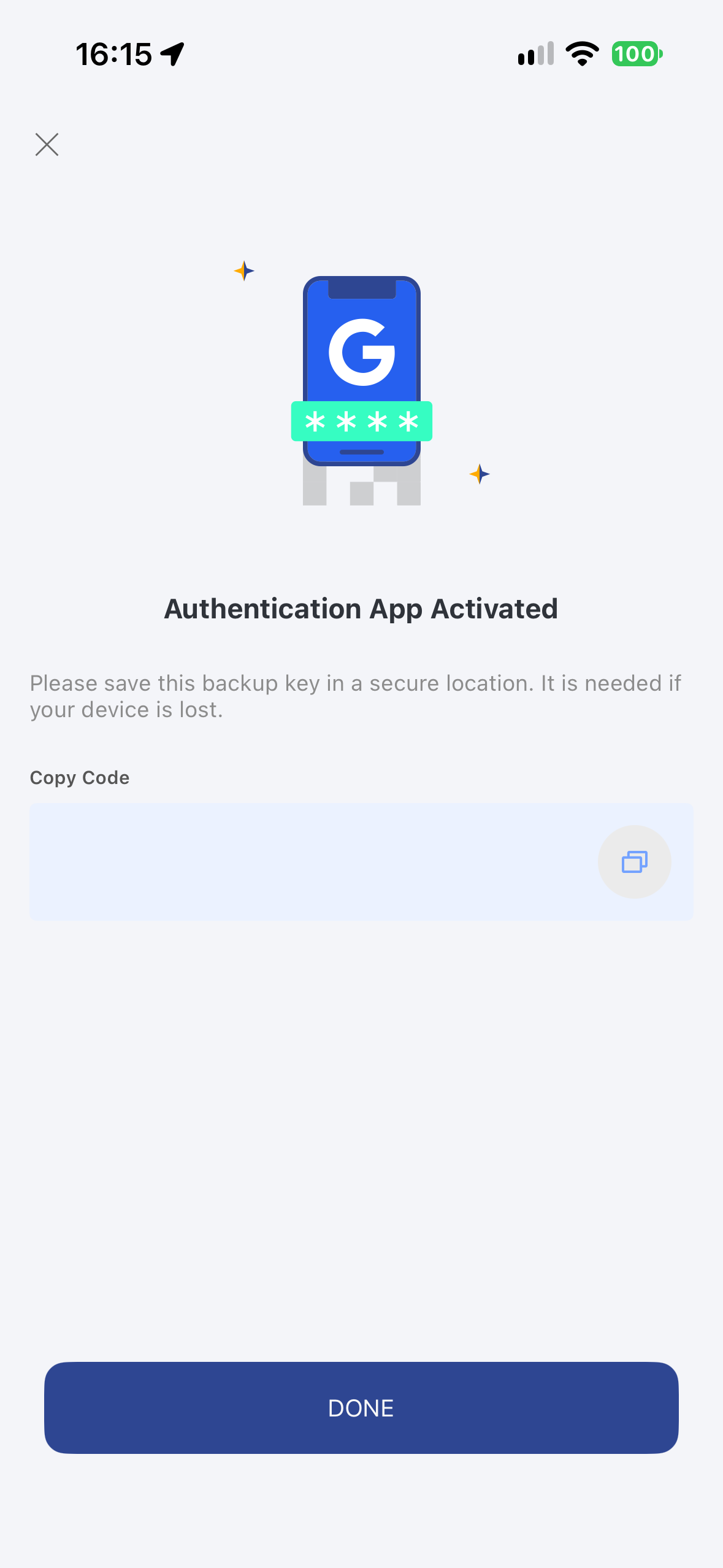
- Important Backup: Please make sure to securely back up and store this setup key. You will need it to restore or reconfigure your authenticator if you lose your phone or replace your device.
Please note: To ensure account asset security, withdrawal functions will be suspended for 24 hours after setting up two-factor authentication.
App Instructions
 |  |  |
 |  |  |
 |  |  |
 |  |